

What is a PBIT File?
A PBIT file stands for Power BI Template file, a feature of Microsoft’s Power BI, a business analytics tool designed for visualizing data and sharing insights. While a standard PBIX file contains both the data model and the visualizations, a PBIT file is somewhat like a blueprint of the PBIX file.
Key Features:
- Parameterized Setup: A PBIT file can include parameters that allow you to input specific settings every time you create a new PBIX file from the template. This is useful for making templates adaptable to different datasets or settings.
- No Data Storage: Unlike PBIX files, PBIT files do not store the data within the file. This makes them lightweight and easier to share.
- Easy Customization: By using a PBIT file, you can have a predefined set of queries, data model configurations, and visualizations, which speeds up report creation. You can customize them further as per the requirements.
- Enhanced Security: Since PBIT files do not contain data, the risk of sensitive data leakage is reduced.
Use Cases:
- Creating standard report layouts for an organization.
- Sharing query logic and visual designs without sharing the actual data.
- Kickstarting projects by using a predefined set of tables, measures, and visualizations.
How to Convert and Existing PBIX Report to a Generic PBIT Template
While the primary use case for PBIT files often revolves around enhancing security through template sharing, an often overlooked yet substantial advantage is its role in data governance. This format allows organizations to standardize reporting structures without exposing sensitive data, thereby contributing to robust governance protocols.
Now, let’s dive into converting an existing PBIX report into a more generic PBIT template.
Step 1: Open Existing Report
- Open the existing PBIX file in Power BI Desktop.
Step 2: Disconnect Data Sources and Other Ad-Hoc Tables
- Delete the existing tables by right-clicking on the table name > Delete.
- From Power Query

- From the Report or Model view
- Click on the three ellipses > Delete from model
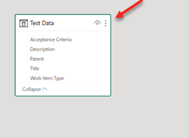

Step 3: Remove Specific Measures or Filters applied to Visual or Report
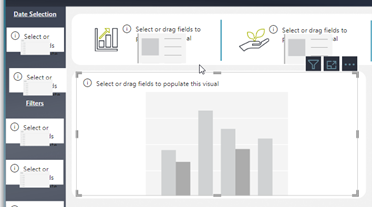
- Remove any measures, calculated columns, or filters applied to the visuals that are specific to the original dataset to avoid errors when opening the template with a different dataset.


Step 4: Remove Object Titles
- Scan your report and remove titles from tables, charts, and other visual objects. This ensures the template remains neutral and free from context specific to the original dataset.

Step 5: Update Visualizations
- If your report uses custom visualizations, you may want to remove them and replace them with Power BI visualizations.
Custom

Power BI
Step 6: Add Parameters (Optional)
- Add any parameters that you think would be useful for the template. Parameters can prompt the user for certain settings or information when they create a new report from the template.

Step 7: Review
- Ensure that all the elements are generic enough to prevent errors when someone tries to use the template with a different dataset.
Step 8: Save As Template
- Go to File > Save As
- Give it a name and save the file with a .pbit extension.

Step 9: Test the Template
- After saving, open the newly created PBIT file to ensure it doesn’t throw errors and prompts for parameters, if any, were added.
- Following these steps, you can convert an existing Power BI report into a generic template. This allows you to share your report’s structure, layout, and design without being tied to a specific dataset or measures.
How to Use a PBIT File
1. Open the PBIT file
- Double-click the .PBIT file, or open Power BI Desktop and click on File > Open and select the PBIT file. This will open a new report in Power BI Desktop.

2. Enter Parameter Values (if applicable)
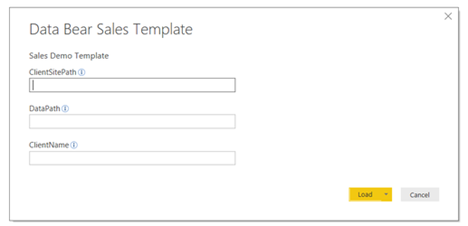
- If the template has parameters, a window will open, asking for the parameter values. Enter the required values and click Load. If there are no parameters, this step will be skipped, and Power BI will load the data.
3. Connect to the Data Source
- The PBIT file contains the queries to retrieve and load data but not the data itself. So, you will need to connect to the data source. If the data source connection requires credentials, you will be prompted to enter them.


4. Refresh the Data
- You may need to refresh the data once you’ve connected to the data source. To do this, click Home > Refresh on the Power BI menu.

5. Explore and Modify the Report
- You can now explore the report, taking note of the sample visuals that have been included. These visuals serve as placeholders and examples of the report layout, color scheme, and font.

- Select a visual to update these visuals with your data and go to the Data pane on the right-hand side. Here, you can drag and drop fields from your dataset to populate the visuals.

- You can also modify the report by adding or removing visuals, changing filters, or modifying the data queries.

8. Save the Report
- Once you’ve made any changes, be sure to save the report. Since you’ve opened a template, Power BI will prompt you to save it as a new .PBIX file, preserving the original PBIT template file.
Using PBIT files in Power BI is a powerful way to standardize reporting, enhance data security, and streamline workflows. By following the steps outlined in this guide, you can efficiently convert existing reports into flexible templates that cater to various datasets while maintaining consistent design and functionality. Whether you’re building templates for your organization or sharing them with a broader audience, PBIT files offer unparalleled adaptability and convenience. Start leveraging PBIT files today to maximize the efficiency and impact of your Power BI reports.